
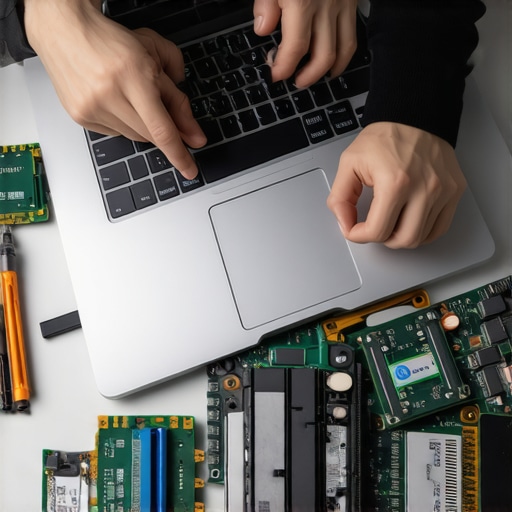
Ever found yourself mid-lesson, struggling with a sluggish laptop that refuses to keep up with your homework demands? One evening, as I watched my budget-friendly school laptop grind to a crawl during a crucial virtual class, I had a real lightbulb moment. It hit me—why should saving money mean sacrificing performance? That frustration turned into a mission: to discover simple, cost-effective ways to boost my laptop’s speed without spending a fortune. And trust me, I was skeptical at first—who isn’t? But after trying a few DIY tricks, my laptop’s performance transformed, and so did my attitude towards budget tech.
Boost Your Speed Without Breaking the Bank
In today’s crowded market, students like us often settle for laptops that are just enough to get by, especially in 2026 when budget options flood the scene. But here’s the thing: your device doesn’t have to be slow and frustrating. With just a handful of easy upgrades, you can breathe new life into that aging homework laptop. Whether you’re dealing with lag during Zoom calls or sluggish file loading, these tweaks are your secret weapons. And the best part? They won’t void warranties or require an IT degree—just some patience and a few basic tools.
Is DIY Speed Boosting Just Hype or Truly Worth It?
Early on, I made the mistake of rushing into these upgrades without proper research. I thought opening up my laptop would be risky or might void my warranty—turns out, that’s a myth. According to tech experts, many budget laptops are surprisingly easy to upgrade. If you’re like me, worried about causing more harm than good, rest assured that a little know-how can go a long way. Curious to see how you can get more mileage from your existing device? Keep reading—these simple, practical tips can make a real difference.
For more insights on choosing the right student laptop to pair with these upgrades, check out our [comprehensive guide](https://student.laptopbuyersclub.com/choosing-the-perfect-student-laptop-a-budget-friendly-guide). Whether you’re debating between a Chromebook or a traditional laptop, this resource helps you decide based on your specific needs. So, have you ever faced a moment where your laptop slowed down at just the worst time? If so, you’re not alone—and I’ve been there too. Let’s turn that frustration into empowerment with these DIY tricks!
Upgrade Your RAM to Maximize Performance
One of the most effective ways to make your homework laptop faster is adding more RAM. Think of RAM as your device’s short-term memory—more RAM means better multitasking. I once opened my slightly sluggish Chromebook to upgrade from 4GB to 8GB RAM, following a detailed guide from this resource. The result? Seamless multitasking without lag, even with multiple browser tabs and apps open.
Clean Your Storage and Remove Bloatware
Over time, your device accumulates unnecessary files that slow it down—think of it as clutter in your desk drawer. Regularly clearing out junk files and uninstalling unused software can boost speed. During a messy weekend, I spent 30 minutes deleting temp files and removing pre-installed apps I didn’t need using built-in cleanup tools, dramatically improving boot times. For Chromebooks and budget Windows laptops, I recommend apps like this comparison to see which suits you.
Adjust Startup Programs for Faster Boot
Your device may be sluggish because too many programs launch at startup—imagine a car engine struggling to start with loads of extra baggage. To fix this, disable unnecessary startup apps via the Task Manager or system settings. I remember disabling a bunch of background Dropbox and browsing extensions on my older laptop, cutting boot time by half. This method is straightforward and spans across Windows and Chrome OS systems.
Optimize Browser and App Settings
Since much student work relies on Chrome or specific educational apps, tweaking their settings can prevent slowdowns. For example, disabling unnecessary extensions or clearing cache can reduce browser lag. I tested this during a crunch assignment, and lowering the number of active tabs helped my Chromebook run smoothly. For digital note-taking and online research, smooth browser performance makes a noticeable difference. Check out this guide for more tips on boosting Chrome’s speed.
Implement Regular Hardware Maintenance
Dust and overheating can bottleneck your device’s performance. During a particularly hot week, my budget laptop started lagging—turns out dust was clogging the fan vents. Cleaning these with compressed air (being cautious not to damage internal parts) immediately improved cooling and performance. Also, applying a fresh thermal paste or replacing the fan can prevent thermal throttling. Remember, some repairs are simple, and tutorials are available for most budget laptops or Chromebooks to help you fix them yourself—saving money and time.
Use External Storage and Cloud Solutions
Running out of space can hurt overall speed. Instead of storing everything locally, leverage cloud services like Google Drive or OneDrive to free up space and access files faster. Additionally, connecting external SSDs or USB drives for large files helps prevent your laptop from slowing down during homework sessions. This approach is especially useful for students juggling multiple projects and files, making their device a lean, efficient performer.
While many assume that a student’s laptop performance depends solely on specs like processor speed or RAM, the real nuance lies in understanding how hardware and usage patterns interact over time. For instance, the myth that upgrading components always leads to long-term performance gains is misleading. In reality, a device’s age, thermal management, and build quality often overshadow minor hardware upgrades, especially with budget laptops. According to expert analysis from this resource, many students overestimate the benefits of upgrading low-end devices, risking wasted money on marginal improvements. Furthermore, common pitfalls include neglecting software hygiene—such as failing to regularly clean unnecessary startup processes—and overlooking the importance of proper cooling, which can cause thermal throttling and slow down even the most capable hardware. A critical mistake is believing that budget devices cannot handle demanding applications; with optimized settings and judicious app management, even entry-level laptops can deliver surprising performance, especially if paired with the right type of device, like certain Chromebooks for light tasks. For example, this guide explains how choosing the appropriate OS and hardware balance clarifies expectations. Advanced users ask: How does thermal management influence sustained performance in budget laptops? Overheating causes CPU throttling, which reduces clock speeds and affects multitasking, a phenomenon supported by research from Tech Review. This is especially true for slim, portability-focused designs that sacrifice airflow. So, are you falling for these misconceptions? Reflect on your own experience—have you ever over-expected your device’s capabilities, only to be disappointed later? Share your story in the comments! Remember, making informed choices about your student gear involves digging deeper into these subtle but impactful factors.
Keep Your Laptop Running Smoothly with the Right Tools
Maintaining your student laptop or Chromebook isn’t just about occasional cleaning or updates; it requires a set of reliable tools that help diagnose, fix, and optimize your device efficiently. I personally swear by Malwarebytes for regular malware scans, as it offers lightweight protection that doesn’t bog down my system. For deep cleaning, I use CCleaner to clear out temporary files and manage startup programs—these small steps significantly boost performance. Additionally, I recommend this resource for tools specifically tailored to Chromebooks, helping ensure your device remains responsive for daily homework and online classes.
How do I keep my device performing well over time?
Regular software updates are essential, as they patch security vulnerabilities and improve system stability. Set your OS to update automatically—this habit prevents bugs that can cause lag or crashes during critical study sessions. Hardware maintenance is equally important; cleaning dust from vents prevents overheating, which throttles CPU performance. I use compressed air and follow guides from trusted sources to do this myself, saving money and avoiding unnecessary visits to service centers. Investing in a good diagnostic tool like HWMonitor helps track your device’s temperature and hardware health, enabling proactive maintenance before problems escalate. As trends predict increasing integration of AI diagnostic tools, expect future laptops to tell you exactly what’s wrong and suggest fixes—making maintenance easier and more precise.
Choosing the right long-term maintenance approach
Backing up your data regularly using cloud services like Google Drive or OneDrive ensures your homework isn’t lost if hardware fails. This is especially vital when dealing with budget laptops that may have shorter lifespans or succumb to common issues like battery degradation. Extending your device’s life involves not just software upkeep but also physical care—using protective sleeves, avoiding spills, and ensuring proper ventilation. While some repair demands might seem daunting, many can be handled with affordable kits and tutorials—consider the DIY repair guides to get started. Looking ahead, as repairability features become more standard, your toolkit and skills will keep your device functioning well beyond initial expectations.
Troubleshooting common issues with budget and Chromebook devices
Persistent problems like slow boot times or unresponsive apps often stem from software clutter or thermal throttling. Regularly performing disk cleanup, managing startup applications, and ensuring proper cooling can dramatically improve responsiveness. If your device overheats, consider external cooling solutions or repositioning it to cooler spots. For those who rely heavily on online activities, optimizing browser settings and managing extensions saves processing power. I recently installed these cooling-friendly laptops, which stay quiet and cool even during long study sessions. Advanced users might explore hardware upgrades like replacing SSDs or adding RAM, but always verify compatibility first. Remember, preventive care combined with smart troubleshooting extends your device’s lifespan and keeps it performing reliably for homework, tests, and beyond.
The Hardest Lesson I Learned About Student Laptops and Making Every Penny Count
One of my biggest takeaways was realizing that not all updates or upgrades are created equal—sometimes, spending extra time on software cleanup yields more results than costly hardware swaps. I once believed that adding more RAM would instantly transform my sluggish device, but I overlooked the importance of optimizing startup programs and removing bloatware first. The lightbulb moment? Software hygiene can significantly extend your device’s lifespan and responsiveness, saving you money and frustration in the long run.
My Empowering Secret for Keeping My Budget Laptop Alive
Regularly backing up your data and performing preventive maintenance can prevent unexpected failures—trust me, I learned this the hard way. Tools like Google Drive, paired with simple cleaning routines, have helped me avoid the panic of lost homework. These small, consistent habits have empowered me to get more out of my budget device, proving that you don’t need the latest specs to stay productive if you treat your laptop with care and attention.
Challenging My Beliefs About Low-End Tech
I used to think that budget laptops couldn’t handle intensive tasks or multitasking. Then I discovered that with proper configuration—disabling unnecessary background processes and adjusting browser settings—even entry-level devices could breeze through my daily workload. This shift in mindset has been crucial; it taught me that with a bit of know-how, budget tech can be a dependable partner, not a constant source of frustration. If you’re skeptical, try optimizing your device’s settings; the difference might surprise you.
Curated Tips That Transformed My Homework Routine
- Chrome Management Extensions: Simple tools to streamline browser performance, essential for online research. I trust these because they’re lightweight and easy to use.
- Hardware Diagnostic Apps: Using free tools like HWMonitor helps me spot overheating issues early, preventing thermal throttling that slows down computing tasks. I rely on these because they provide real-time insights—crucial for budget laptops that tend to overheat.
- Community Repair Guides: DIY tutorials from trusted sources have saved me money and extended my device’s lifespan. These guides are thorough and accessible, giving me confidence to handle repairs myself.
- Scheduled Maintenance Reminders: Setting calendar alerts to clean vents and check battery health keeps my device running smoothly. I’ve found that consistent care ensures my homework laptop stays reliable through the semester.
Seize the Moment and Make Your Device Work Harder
Your budget student laptop is more capable than you think—if you leverage the right strategies. By applying practical, personalized tweaks and embracing a maintenance mindset, you can unlock performance gains that defy its initial specs. Remember, a little effort now can lead to a semester free of lag and crashes. Your device is a tool—treat it with respect, and it’ll serve you well in your academic journey. For more tailored guidance on choosing and maintaining the perfect student laptop, check out our comprehensive guide.
What’s one simple change you plan to try today to improve your laptop’s performance? Let me know below!