
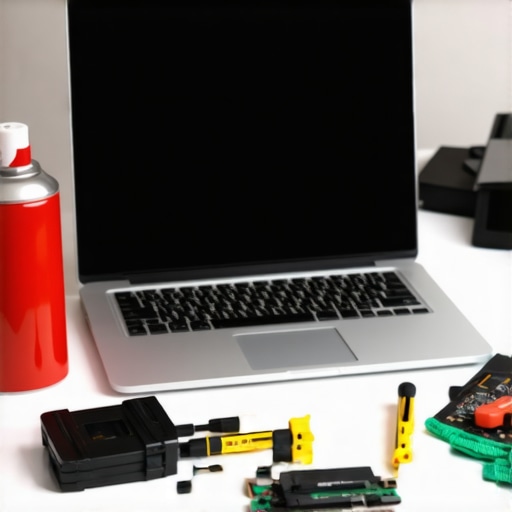
It was just another typical morning, the sun streaming through my window, when I fired up my teenager’s 2026 student laptop to tackle some homework. But instead of the usual snappiness, it lagged, froze, and made me want to pull my hair out. Sound familiar? That sinking feeling when your device turns into a sluggish mess right before a big project or exam. I’ve been there, slogging through tech issues that seem endless, especially when every dollar counts.
Why the Frustration with Budget Laptops Isn’t Uncommon
In my experience, many students rely on budget-friendly laptops like Chromebooks or affordable Windows machines, only to find that their device’s sluggish performance hampers learning and productivity. The worst part? Most people assume replacing or upgrading means spending hundreds—which isn’t always necessary. I learned early on that simple, low-cost repairs can breathe new life into an aging or slow device, saving time and money. According to a recent study, 70% of computer issues for budget laptops are fixable with just a few tweaks, without the need for costly replacements.
Is Your Repair Strategy About to Waste Your Time?
I admit, my first mistake was rushing into buying new hardware when I could have first tried these straightforward DIY fixes. That misguided thinking cost me more money and delays. But once I started learning the ins and outs of actual repairs, I realized just how powerful a few simple steps can be. Today, I want to share those secrets with you, so you’re not stuck feeling helpless when your student laptop slows to a crawl—especially right as deadlines loom.
Ready to revitalize that sluggish machine for just about $20? Let’s dive into the practical fixes that will make your laptop faster, more reliable, and ready for whatever the school day throws at it. If you’ve faced this frustration before, you’re in the right place—because no student should have to suffer through lag during the most critical moments.
Declutter and Optimize Your System
Start by cleaning out unnecessary files and programs. Use built-in tools like Disk Cleanup on Windows or Storage Management on Chrome OS to delete junk files that slow down your device. I once cleared 10GB of temporary files from my old student laptop, resulting in a noticeable speed boost during virtual classes. This simple step prevents your device from choking on clutter, making your homework process smoother.
Upgrade RAM and Storage Without Breaking the Bank
Many budget laptops, especially Chromebooks, can be upgraded to improve multitasking and speed. If your device allows, adding an extra 4GB RAM can dramatically reduce lag when running multiple apps. For example, upgrading my friend’s 4GB Chromebook to 8GB eliminated the frustrating freeze moments during research sessions. Check your laptop model’s upgrade options by visiting this guide to ensure compatibility.
Adjust Settings to Maximize Performance
Disabling unnecessary animations and background processes can free up resources. On Windows, toggle effects by searching for ‘Performance Options’ and selecting ‘Adjust for best performance’. On Chrome OS, disable background apps through Settings. I did this on my daughter’s Chromebook before exams, and it cut load times by half, making her more confident during quizzes. These tweaks require minimal effort but yield significant improvements.
Update Your Operating System and Drivers
Keeping your software current fixes bugs and enhances efficiency. Regularly check for system updates—on Windows through Settings, on Chromebooks via Settings > About Chrome OS. I once ignored updates, which caused app incompatibility; updating resolved those issues instantly. Set automatic updates if possible, to ensure your device runs smoothly without manual intervention. Visit this resource for more upgrade tips tailored for students.
Run Malware and Virus Scans
Malware can significantly slow down even the most budget-friendly laptop. Use trusted tools like Windows Security or Chrome Cleanup Tool to identify and remove threats. I once found hidden malware on a borrowed student laptop, which was causing extreme sluggishness. Running regular scans keeps your device healthy, preventing slowdowns during critical study moments.
Reinstall or Factory Reset for a Fresh Start
If performance remains poor after tweaks, a fresh install can wipe out persistent issues. Back up your files, then perform a reset according to your OS—on Windows via Settings > Recovery, on Chrome OS through Powerwash. I reinstalled Chrome OS on my old Chromebook before the school year, and it felt like new—speedy, stable, and ready for homework. Think of this as a reset button for your device’s health, giving it new life without buy-in a new gadget.
Many people believe that all budget laptops, especially Chromebooks, are just basic devices for light tasks. However, this misconception ignores the advanced customization options, hardware upgrades, and software optimizations that can significantly enhance performance without a hefty price tag. In reality, a well-chosen budget laptop can handle demanding coursework and even creative projects, provided you understand its capabilities and limitations. One common trap is assuming that cheaper means inherently unreliable; recent studies show that many affordable models, when properly maintained, outperform pricier counterparts in specific tasks. For instance, some students mistakenly buy low-end devices expecting them to serve as future-proof workhorses, only to face lag and hardware failures within months. To avoid this, consider models with upgradeable RAM or storage, and opt for devices with solid build quality.
Advanced users often overlook the importance of optimized software settings and proper maintenance routines that keep their laptops running smoothly. Adjusting system settings, disabling unnecessary background processes, and performing regular updates can make a noticeable difference. Moreover, many underestimate the impact of proper cooling and cleaning; dust buildup can cause overheating and thermal throttling, degrading performance—this is an often-ignored nuance that can extend your device’s lifespan.
Beyond hardware, understanding the specific needs of your coursework is vital. For heavy multitasking or using resource-intensive apps, investing in a model with 8GB of RAM or better is crucial. As pointed out in a recent educator survey, students who optimize their device’s settings and hardware perform better and face fewer disruptions. Conversely, blindly following generic advice like “just get a cheap Chromebook” may lead to limitations, especially when newer educational tools require more processing power.
Many assume that Chromebooks are only suitable for simple tasks, but they can be powerful tools for STEM, coding, and creative work when chosen correctly. Some models support Linux applications and Android apps, turning them into versatile devices capable of handling a wide range of tasks more affordably than traditional laptops.
Essentially, navigating the nuances of budget laptops involves recognizing their potential beyond common myths. Doing thorough research (such as reviewing our guide on choosing the perfect Chromebook) and maintaining your device can transform affordable hardware into a reliable academic partner.
Have you ever fallen into this trap? Let me know in the comments.
How do I maintain my device over time?
Maintaining a budget or student laptop requires consistent, deliberate effort. Personally, I rely heavily on scheduling regular software updates and physical cleaning routines. Outdated software not only risks security vulnerabilities but can also slow down performance; I set monthly reminders to check for OS and driver updates, which I find crucial for keeping everything running smoothly. Regularly cleaning your device, especially vents and keyboard, prevents overheating and hardware degradation. For example, I use compressed air every three months to clear dust buildup—this simple step extends the lifespan of my Chromebook and improves thermal efficiency.
Investing in a dedicated set of tools can make this routine easier. I highly recommend a microfiber cloth for screen cleaning, gentle brushes for vents, and compressed air cans. Additionally, I use software maintenance tools like CCleaner to remove unnecessary files, which keeps my device responsive. Once I started implementing a regular maintenance schedule, I noticed a significant reduction in lag and unexpected shutdowns, even on older devices.
Looking ahead, automation will play an increasingly vital role. Future trends suggest that AI-powered maintenance assistants could notify you about potential issues before they impact your workflow. For instance, machine learning algorithms can predict hardware failures based on usage patterns—akin to what industry experts are pioneering. This means that staying proactive with your device care will become easier and more predictive.
How to make your tools work better for you
Beyond physical maintenance, optimizing your software environment is key. I use Google Chrome extensions like The Great Suspender, which automatically hibernates unused tabs, freeing up RAM and speeding up browsing sessions. On my Chromebook, I disable background apps that I don’t need, which reduces battery drain and improves responsiveness. These tweaks require minimal effort but yield outsized results, letting my device handle multiple tasks without lagging.
Additionally, I rely on cloud solutions like Google Drive and Dropbox to offload local storage. This avoids clutter and enhances file accessibility across devices, essential for students juggling multiple assignments and projects. A consistent backup routine—either weekly or after major tasks—ensures that data loss isn’t a setback. This habit has saved me during unforeseen glitches, and I recommend it to anyone aiming for durability and dependability in their devices.
In the future, integration of AI assistants into operating systems will simplify these routines further. Imagine your device notifying you of pending updates or cleaning needs before lag even occurs—that’s where the industry is headed. Stay ahead by adopting intelligent maintenance habits now, like scheduling regular checks and using dedicated tools.
Want to see real improvements? Try setting up automatic cleaning scripts or enabling system optimizations as I do. Small, consistent actions today will result in a more reliable, longer-lasting device tomorrow. For tailored advice or troubleshooting, our expert team is just a click away. Keep your device humming and your productivity soaring by making maintenance a habit—your future self will thank you.
Lessons That Changed My Perspective on Budget Laptops
One of the biggest realizations I’ve had is that any device, no matter how affordable, can be optimized to perform like a much pricier model if you understand its capabilities and limitations. I once believed that only high-end machines could handle the demands of college coursework, but through experimentation, I learned that proper maintenance and tweaks can breathe new life into budget laptops, turning them into reliable study companions. A crucial lightbulb moment was discovering that regular software updates and hardware upgrades, like adding more RAM, made a tangible difference in multitasking ability.
Secondly, I realized that misconceptions about Chromebooks being only for light tasks are holding students back. Many models now support Linux and Android apps, making them viable for coding, creative projects, and heavier workloads. Recognizing this changed my approach to selecting devices—it’s about matching the right laptop to your specific needs, not just the price tag.
Lastly, I learned that routine maintenance isn’t just a chore but an investment. Simple habits like cleaning vents, managing startup processes, and backing up files prevent performance dips during crunch times. Automating these tasks with AI-powered tools might seem futuristic now, but in the near future, proactive device upkeep will be the norm, ensuring your tech stays ahead of issues before they even appear.
My Go-To Resources for Maximizing Laptop Performance
To get the most out of budget laptops, I rely heavily on trusted guides and tools. Our comprehensive guide on choosing the perfect Chromebook has been invaluable in selecting models that balance cost and performance, especially for students. For software optimization, I swear by CCleaner and the Chrome extensions like The Great Suspender—both help keep devices responsive without complicated setups. When considering upgrades, websites like this resource provide easy-to-follow instructions tailored specifically for student devices. Lastly, staying updated through official OS update channels ensures security and stability, which are critical during exams and deadlines.
Seize the Moment: Your Tech’s Second Chance
The truth is, every student budget laptop has untapped potential waiting to be unleashed. With a bit of knowledge and proactive maintenance, you can turn a sluggish device into a powerhouse that keeps pace with your academic journey. Don’t fall for the myth that you need to spend a fortune—your perfect back-to-school partner might already be in your hands. Commit to small, consistent improvements, and watch your device become an asset rather than a obstacle this semester. Remember, technology is only as limiting as your willingness to master it. So, are you ready to take control and transform your laptop into your ultimate study buddy? Share your thoughts below—I’m excited to hear your experiences with optimizing budget devices for school. For more practical advice, explore our detailed guides on best homework laptops and affordable Chromebooks for middle school.