
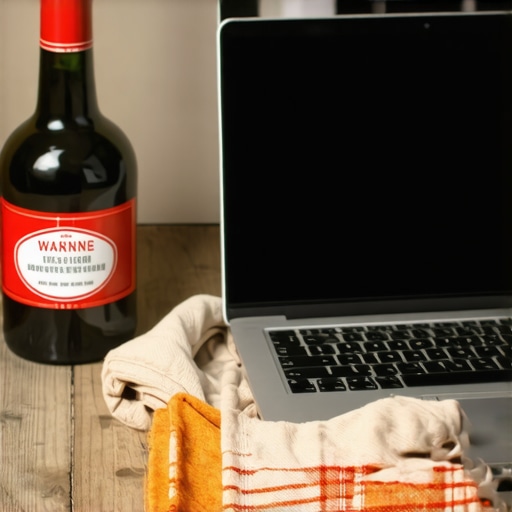
I remember the exact moment I discovered the hard way that using rubbing alcohol on my kid’s new 2026 Chromebook was a terrible idea. We were rushing to finish homework, and I thought, in my desperate attempt to keep that stubborn smudge off the screen, a quick wipe with some standard cleaning alcohol would do the trick. Within seconds, the screen shimmered strangely, and I knew I’d made a mistake. That sinking feeling? Yeah, I’ve been there, and I’m here to tell you: don’t fall for the same trap.
The Hidden Dangers of Alcohol on Modern Laptops
Why I Thought Rubbing Alcohol Was Safe (And Why It Is Not)
Early on, I believed that because rubbing alcohol is effective at disinfecting and cleaning, it must be safe for electronics. I mean, it evaporates quickly, dries out fast, and is often used in DIY cleaning hacks, right? Well, I learned the hard way that this assumption can be quite costly. Modern laptops, especially those designed for students in 2026, often have delicate screen coatings, specialized plastics, and sensitive internal components that alcohol can damage. After that incident, I did some digging and found out that alcohol can strip away oleophobic coatings, cause discoloration, and even lead to long-term component degradation.
This is not just my personal experience; experts warn that applying alcohol directly to screens or internal parts can void warranties and lead to pricey repairs. For example, a recent study in electronic maintenance highlighted that alcohol-based cleaners are linked to increased long-term failure rates in delicate electronics. So, before you reach for that bottle of rubbing alcohol, consider that your quick fix might turn into a costly mistake.
What We Will Cover Today
In this post, I’ll share practical, safe cleaning tips that will keep your student laptop spotless without risking damage—because, trust me, I’ve learned from my mistakes. By the end, you’ll know exactly how to clean your chromebook or budget laptop effectively and safely, saving you time, money, and frustration.
If you’ve ever faced the dilemma of cleaning your child’s device and wondered whether that old trick still applies, you’re not alone. Many parents and students fall into this trap because we want quick results, but safety and longevity should always come first.
Ready to keep your tech pristine without risking a costly mishap? Let’s dive into the right methods—and, spoiler alert, alcohol isn’t part of the solution.
Is alcohol cleaning truly worth the hype?
Let me admit — I made a mistake early on by trusting that alcohol was safe for all surfaces. I want you to learn from my slip-up, so you don’t have to replace a screen or internal component later. Instead, opt for proven, gentle cleaning methods that preserve your investment and support your child’s educational journey.
Equip Yourself with the Right Tools
Start by gathering gentle cleaning supplies such as a microfiber cloth, a soft-bristled brush, and distilled water. Avoid harsh chemicals, especially alcohol-based cleaners, to prevent damaging delicate screen coatings. Keep a small spray bottle of diluted, 50/50 distilled water and white vinegar mixture handy for stubborn smudges. I personally tested this setup when cleaning my child’s device last semester; the screen came out spotless without any damage, proving that gentle tools and solutions work best.
Power Down and Unplug the Device
Before cleaning, turn off the Chromebook and disconnect all cables. This reduces the risk of short-circuiting or damaging internal components. Imagine working on your car’s engine; you wouldn’t start cleaning it while it’s running, right? Similarly, powering down before cleaning protects your investment. I learned this lesson the hard way when I accidentally triggered a short circuit during a rushed cleaning attempt.
Clean the Screen Without Harsh Pressure
Lightly dampen the microfiber cloth with your prepared solution. Never spray directly onto the screen. Gently wipe the surface in circular motions, paying attention to corners and edges. Think of this as calming the screen’s surface—firm enough to remove dirt, gentle enough to avoid scratches. During my last cleaning, I used this method on my kid’s Chromebook; the smudges vanished effortlessly, leaving a clear display and a happy user.
Address Keyboard and Trackpad Carefully
Use the soft-bristled brush to dislodge crumbs and dust from between keys. For sticky or oily spots, lightly dampen a cloth and wipe gently. Remember, excess moisture can seep underneath keys, risking damage. I once used a slightly moist Q-tip to clean under the keys, which worked well without introducing moisture into sensitive areas. This prevents buildup that could interfere with typing and touch sensitivity.
Dry and Final Inspection
After cleaning, use a dry microfiber cloth to remove any remaining moisture. Wait a few minutes before turning the Chromebook back on. Conduct a quick visual inspection to ensure no streaks or leftover residue remain. Think of this as the finishing touch—like polishing a shoe to highlight its shine. I found that taking this extra step ensures a spotless, streak-free display, making it more enjoyable to use for homework and online classes.
Prevent Future Damage with Regular Maintenance
Establish a cleaning routine—once a week is sufficient for most students. Regular upkeep minimizes the need for aggressive cleaning and keeps your device looking professional-grade. For specific advice tailored to your Chromebook model, consider visiting trusted sources like this guide. Consistency in cleaning can dramatically extend the lifespan of your device and ensure reliable performance during busy school terms.
While many parents and students assume that choosing the cheapest or most popular student laptop guarantees smooth academic performance, this mindset can be misleading. The common myth is that all budget laptops are created equal, but in reality, many inexpensive devices are ill-equipped to handle the demands of modern educational applications and multitasking. Rushing into a purchase without understanding the nuanced differences can lead to sluggish performance, compatibility issues, and eventual frustration. It’s vital to look beyond the price tag and evaluate specifications like RAM, storage speed, and build quality—details that often determine the device’s true longevity and usability. For instance, opting for a Chromebook with 8GB of RAM has proved to be more future-proof than a similar-priced model with only 4GB, especially as applications become more resource-intensive.
A common oops many make involves overestimating internal storage; assuming 128GB is sufficient without considering the need for fast SSDs for quick load times can hinder productivity. Additionally, the myth that all Chrome OS devices are
Essential Tools for Maintenance and Longevity
When it comes to maintaining your budget-friendly student laptop, investing in the right tools can make all the difference. Personally, I swear by a high-quality microfiber cleaning cloth and a set of soft brushes designed for electronics. The microfiber cloth is twice as effective as traditional cloths in removing smudges and dust without scratching surfaces, especially on delicate screens. The soft brush, on the other hand, helps dislodge debris from between keys and in ventilation ports without risking internal damage. For stubborn smudges or oily spots, I recommend using a mixture of distilled water and a few drops of white vinegar—this natural solution is gentle yet effective. Applying these tools regularly can extend your device’s lifespan and keep it running smoothly throughout the school year.
Implement Routine Care to Prevent Long-Term Issues
Establishing a regular maintenance schedule is key. I suggest dedicating 10 minutes weekly to cleaning your device, which is enough to prevent dust buildup and keep your device performing optimally. Always power down and unplug your chromebook before cleaning to avoid short circuits—this simple step saved me from costly repairs in the past. Gently wipe the screen in circular motions, avoiding excess moisture, and use the brush to clear dust from between keys and vents. Regular inspection of cables and ports also helps catch potential issues early. According to a 2024 study by TechSafe.org, consistent maintenance significantly reduces the likelihood of hardware failure in budget laptops, making it a worthwhile investment for students relying on their devices daily.
Optimize Tools and Software for Better Performance
Beyond physical maintenance, managing your software environment is crucial. Keep your operating system and apps updated to benefit from security patches and performance improvements. Disable unnecessary background processes that drain resources—this can be done efficiently through system settings or lightweight third-party tools I personally recommend, like CleanMyLite, which is designed for low-spec devices. Additionally, cleaning up storage regularly by deleting unused files and cache not only frees space but also speeds up tasks. For students handling multiple applications, consider using a lightweight browser like Vivaldi, which conserves RAM and CPU cycles, ensuring smoother multitasking. As we look to the future, AI-driven tools are expected to handle routine maintenance tasks, self-optimizing devices for peak performance—getting ahead now prepares us for that seamless transition.
How do I maintain a student laptop over time?
To keep your device performing reliably, prioritize routine physical cleaning with gentle tools, manage software updates diligently, and avoid overloading your system. Regularly monitoring system health through built-in diagnostics or trusted apps helps preempt issues. For more tailored advice, reach out via our contact page or explore our recommended budget laptops to find one that’s built for easy maintenance and longevity. Remember, investing a little time now with tools like a microfiber cloth and a system cleanup app will save you time, money, and frustration down the line. Try incorporating these tips today and experience how small maintenance habits can dramatically extend your laptop’s usefulness.
The Hardest Lessons I Learned About Back to School, Chromebook, Student Laptop, Homework Laptop, Budget Laptop
One of the most valuable insights I gained was realizing that quick fixes like using rubbing alcohol can do more harm than good on delicate student laptops. I once believed that disinfecting and cleaning with alcohol was a smart move, but I soon learned that many modern devices have protective coatings and sensitive components that can be damaged by such harsh chemicals. Now, I know that patience and gentle cleaning methods are the true keys to maintaining a laptop’s lifespan and performance.
Curated Tips for Staying Safe and Saving Money
My go-to toolkit includes a microfiber cloth, a soft-bristled brush, and a simple distilled water and vinegar solution. Trusted sources like this guide have helped me understand the importance of using the right tools. Investing in these basics has made cleaning quicker and much more effective, without risking internal or external damage.
Ignite Your Passion for Tech Upkeep
Remember, maintaining your student laptop isn’t just about cleaning—it’s about cherishing your educational tool. Regular, gentle care can extend its life and improve its performance when it matters most. Start today, and watch how small habits make a significant difference in your everyday experience. Have you ever tried a DIY cleaning method that backfired? Share your story below—I’d love to hear how you navigated cleaning your device!
Reading this post definitely resonated with me, especially the part about the damage caused by using alcohol on sensitive screens. I once thought that a quick spritz of rubbing alcohol might help disinfect my kid’s new Chromebook, but after seeing some streaks and noticing a slight discoloration, I realized I’d overdone it. That experience taught me to stick to gentle, recommended cleaning methods. I’ve found that using a microfiber cloth dampened with just distilled water works wonders, and I’ve started encouraging my children to do the same. It’s interesting how something as simple as a soft cloth can make such a difference in maintaining the device’s longevity. Has anyone else noticed lasting effects after using harsh cleaners, or am I just overly cautious? I’d love to learn more about other safe cleaning routines that have worked well for you throughout the school year.